 Billy Christi
 This workflow corresponds to n8n.io template #12565 — we link there as the canonical source.
This workflow follows the Agent → Chat Trigger recipe pattern — see all workflows that pair these two integrations.
The workflow JSON
Copy or download the full n8n JSON below. Paste it into a new n8n workflow, add your credentials, activate. Full import guide →
{
"id": "yyqltWiYtKjKJnBQ",
"meta": {
"templateCredsSetupCompleted": true
},
"name": "talk-to-your-data",
"tags": [],
"nodes": [
{
"id": "c0df409a-7749-48e2-9635-07ceedf3e6c2",
"name": "Simple Memory",
"type": "@n8n/n8n-nodes-langchain.memoryBufferWindow",
"position": [
832,
1824
],
"parameters": {},
"typeVersion": 1.3
},
{
"id": "573db305-93d3-4d75-9a4e-3c28da024eba",
"name": "Sticky Note",
"type": "n8n-nodes-base.stickyNote",
"position": [
0,
-80
],
"parameters": {
"width": 608,
"height": 1552,
"content": "## Conversational analytics with Google Sheet and C1 by Thesys\nTurn any Google Sheet into a **chat-powered dashboard**. Ask questions in plain English and get **interactive charts, tables, and UI** (not just text) powered by **C1 by Thesys**.\n**Outcome:** faster insights from spreadsheet data. No filters, pivot tables, or manual chart building.\n### [Check out a working demo of this template here](https://www.thesys.dev/n8n?url=https%3A%2F%2Fasd2224.app.n8n.cloud%2Fwebhook%2Feb721104-ff1e-43f2-800d-000f04c1f427%2Fchat).\n\n### Example Use Cases\nYou can use this setup for many real-world scenarios, such as:\n##### Lead Tracking\n- Upload your leads data to Google Sheets\n- Ask questions like:\n - \u201cHow many new leads came from LinkedIn?\u201d\n - \u201cWhich region generated the most leads?\u201d\n\n##### Marketing Campaign Analysis\n- Store campaign performance data in a sheet\n- Ask:\n - \u201cWhich campaign had the highest conversion rate?\u201d\n - \u201cCompare email vs paid ads performance\u201d\n\n### How it works\n1. User sends a prompt\n2. C1 model based on prompt will use CoinGecko MCP to fetch live data\n3. C1 Model generates a UI Schema Response\n4. Schema is rendered as UI using Thesys GenUI SDK on the frontend\n\n### Setup\nMake sure you have the following:\n##### 1. Thesys API Key\nYou\u2019ll need an API key to authenticate and use Thesys services.\n\ud83d\udc49 Get your key [here](https://console.thesys.dev/keys) \n\n##### 2. Google Sheet as a Data Source\nPrepare a Google Sheet that contains your data:\n- Column headers in the first row\n- Clean, structured data (no merged cells)\n- Example columns:\n - `date`\n - `campaign_name`\n - `leads`\n - `cost`\n\n### Prefer a video tutorial?\n@[youtube](0rtdVfjKJ-M)\n\n\n### Facing setup issues?\n### If you get stuck or have questions:\n- ### \ud83d\udcac Join the [Thesys Community](https://discord.com/invite/Pbv5PsqUSv) \n- ### \ud83d\udce7 Email support: support@thesys.dev\n"
},
"typeVersion": 1
},
{
"id": "7180e794-b668-46ea-9724-4e118ff78dc3",
"name": "Sticky Note1",
"type": "n8n-nodes-base.stickyNote",
"position": [
640,
816
],
"parameters": {
"width": 1136,
"height": 656,
"content": "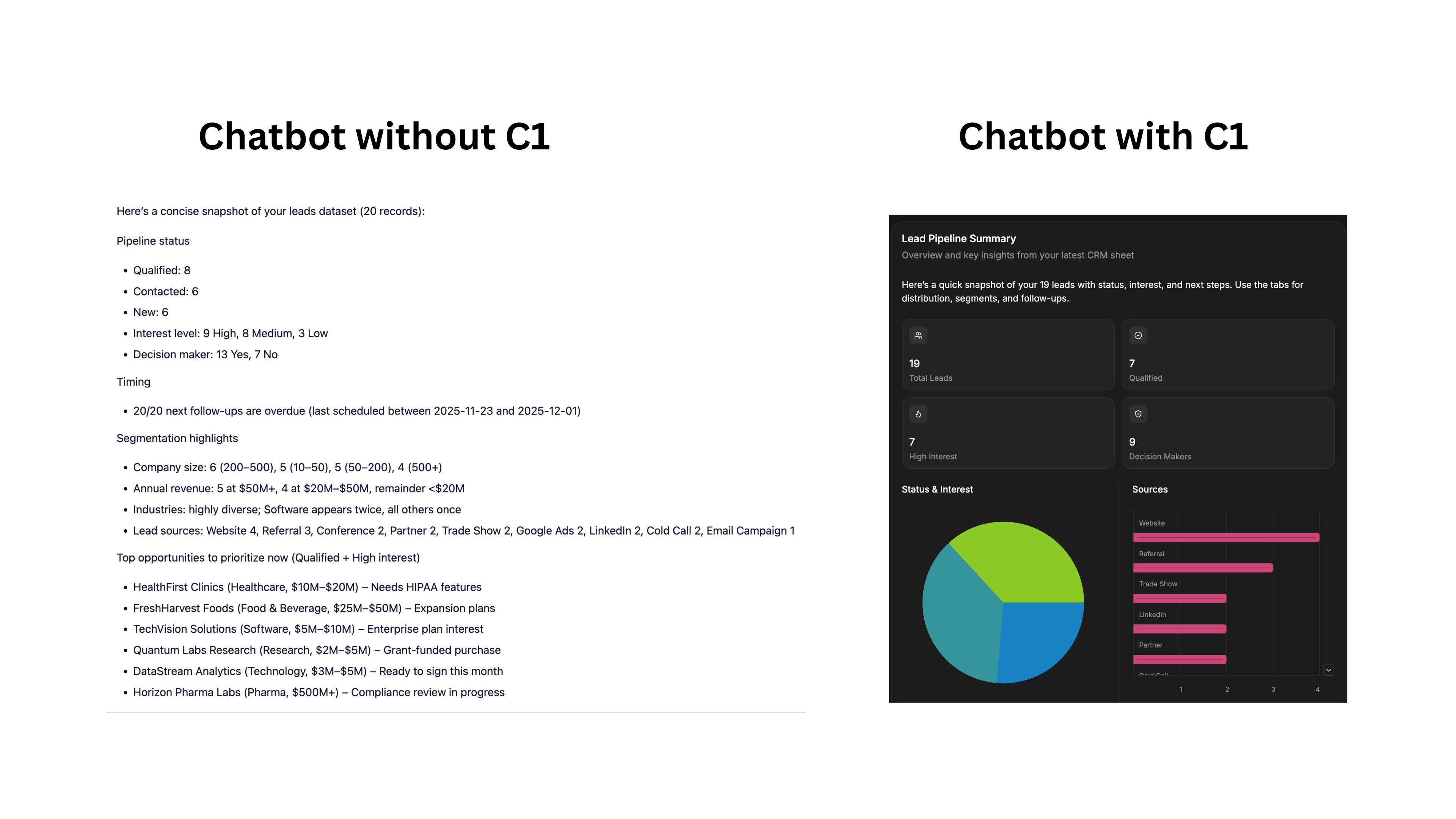"
},
"typeVersion": 1
},
{
"id": "36231a1b-a595-4789-ad77-d06d04e6ce9b",
"name": "When chat message received",
"type": "@n8n/n8n-nodes-langchain.chatTrigger",
"position": [
480,
1600
],
"parameters": {
"public": true,
"options": {},
"initialMessages": ""
},
"typeVersion": 1.4
},
{
"id": "67ffaf33-8bb6-44fa-96cd-64a94de786e6",
"name": "Sticky Note6",
"type": "n8n-nodes-base.stickyNote",
"position": [
208,
1728
],
"parameters": {
"width": 400,
"height": 1008,
"content": "### Step 1: Enable Chat\n\n1. In n8n, open the Chat node in your workflow.\n\n2. Make Chat Publicly available.\n\n3. Copy the Chat URL. You will need it in the next step.\n\n### Step 2: Setup Thesys\n\n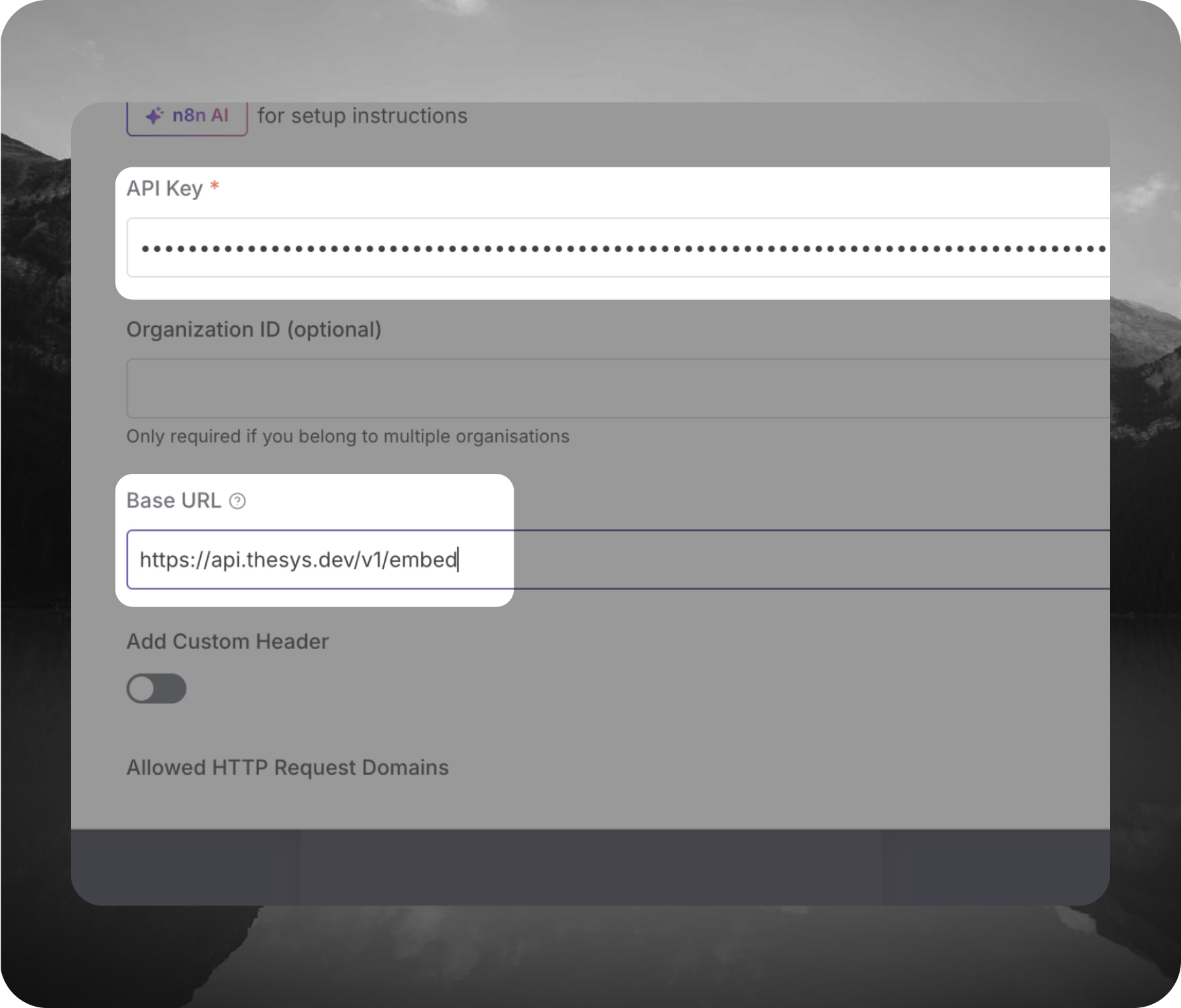\n\n1. [Go to Thesys Console and log in](https://console.thesys.dev/keys)\n\n2. Generate a new API key and copy it somewhere safe.\n\n3. In n8n, open the Model node in your workflow.\n\n4. In the Credentials section, click Create New to add a new credential.\n\n5. Paste your Thesys API key into the API Key field.\n\n6. Update the Base URL to - https://api.thesys.dev/v1/embed and save the credential.\n\n7. Back in the Model section of the node, select the model you want to use\n(for example: c1/openai/gpt-5/v20251230) and save the node."
},
"typeVersion": 1
},
{
"id": "6d2d016f-9261-48be-a90d-0b473b56a29c",
"name": "Sticky Note8",
"type": "n8n-nodes-base.stickyNote",
"position": [
1216,
1520
],
"parameters": {
"color": 5,
"width": 448,
"height": 336,
"content": "\n### Step 4: Activate the Workflow\n\n1. At the top of the n8n editor, click the Active / Inactive toggle.\n\n2. Confirm the workflow status is set to Active.\n\n\n### Step 5: Try It Out\n\n1. Open [Thesys N8N page](https://www.thesys.dev/n8n)\n\n2. Paste your Chat URL into the input box.\n\n3. Send a test message to confirm everything is working."
},
"typeVersion": 1
},
{
"id": "313844e7-ffdf-4a80-9a4c-458bdace6261",
"name": "UI Agent",
"type": "@n8n/n8n-nodes-langchain.agent",
"position": [
768,
1600
],
"parameters": {
"options": {
"enableStreaming": true
}
},
"typeVersion": 3
},
{
"id": "9fb55984-3808-44e7-b1d6-1abae84dd308",
"name": "C1 Chat Model",
"type": "@n8n/n8n-nodes-langchain.lmChatOpenAi",
"position": [
704,
1824
],
"parameters": {
"model": {
"__rl": true,
"mode": "list",
"value": "c1/openai/gpt-5/v-20250930",
"cachedResultName": "c1/openai/gpt-5/v-20250930"
},
"options": {},
"responsesApiEnabled": false
},
"credentials": {
"openAiApi": {
"name": "<your credential>"
}
},
"typeVersion": 1.3
},
{
"id": "1193098f-8933-48b6-8ecf-9eb3224f9ae5",
"name": "Fetch data from Google Sheet",
"type": "n8n-nodes-base.googleSheetsTool",
"position": [
960,
1824
],
"parameters": {
"options": {},
"sheetName": {
"__rl": true,
"mode": "list",
"value": "gid=0",
"cachedResultUrl": "https://docs.google.com/spreadsheets/d/1wRKn53iDhDCUzvkaYjmhDZQJn13gMZIJ0o_MjBFJ5mU/edit#gid=0",
"cachedResultName": "Sheet1"
},
"documentId": {
"__rl": true,
"mode": "list",
"value": "1wRKn53iDhDCUzvkaYjmhDZQJn13gMZIJ0o_MjBFJ5mU",
"cachedResultUrl": "https://docs.google.com/spreadsheets/d/1wRKn53iDhDCUzvkaYjmhDZQJn13gMZIJ0o_MjBFJ5mU/edit?usp=drivesdk",
"cachedResultName": "Lead Gen"
}
},
"credentials": {
"googleSheetsOAuth2Api": {
"name": "<your credential>"
}
},
"typeVersion": 4.7
},
{
"id": "f0d53917-fe65-44aa-a01d-612561d51e2c",
"name": "Sticky Note2",
"type": "n8n-nodes-base.stickyNote",
"position": [
640,
1504
],
"parameters": {
"color": 7,
"width": 528,
"height": 480,
"content": "## UI Agent\nThis agent can reason, use tools and returns results as interactive UI"
},
"typeVersion": 1
}
],
"active": false,
"settings": {
"executionOrder": "v1"
},
"versionId": "c21fc02b-e6b6-4e62-9198-b57de99e3f4e",
"connections": {
"C1 Chat Model": {
"ai_languageModel": [
[
{
"node": "UI Agent",
"type": "ai_languageModel",
"index": 0
}
]
]
},
"Simple Memory": {
"ai_memory": [
[
{
"node": "UI Agent",
"type": "ai_memory",
"index": 0
}
]
]
},
"When chat message received": {
"main": [
[
{
"node": "UI Agent",
"type": "main",
"index": 0
}
]
]
},
"Fetch data from Google Sheet": {
"ai_tool": [
[
{
"node": "UI Agent",
"type": "ai_tool",
"index": 0
}
]
]
}
}
}
Credentials you'll need
Each integration node will prompt for credentials when you import. We strip credential IDs before publishing — you'll add your own.
googleSheetsOAuth2ApiopenAiApi
For the full experience including quality scoring and batch install features for each workflow upgrade to Pro
About this workflow
Turn any Google Sheet into a chat-powered dashboard. Ask questions in plain English and get interactive charts, tables, and UI (not just text) powered by C1 by Thesys. Outcome: faster insights from spreadsheet data. No filters, pivot tables, or manual chart building.
Source: https://n8n.io/workflows/12565/ — original creator credit. Request a take-down →
Related workflows
Workflows that share integrations, category, or trigger type with this one. All free to copy and import.
Think Tool. Uses stickyNote, agent, googleCalendarTool, memoryBufferWindow. Chat trigger; 28 nodes.
Overview Meet Maria, a sophisticated AI Booking Agent designed for Veterinary Clinics (but easily adaptable to any service business). This workflow transforms a simple chat interface into a full-scale
This workflow creates a fully interactive AI-powered Sales CRM Chatbot inside n8n, capable of understanding user queries, searching Google Sheets for CRM data, and responding intelligently based on re
Generate high-quality, SEO-optimized content briefs automatically using AI, real-time keyword research, SERP intelligence, and historical content context. This workflow standardizes user inputs, fetch
This n8n workflow creates an intelligent AI agent that automates browser interactions through Airtop's browser automation platform. The agent can control real browser sessions, navigate websites, inte