 Baptiste Fort
 This workflow corresponds to n8n.io template #8676 — we link there as the canonical source.
This workflow follows the Agent → Airtable recipe pattern — see all workflows that pair these two integrations.
The workflow JSON
Copy or download the full n8n JSON below. Paste it into a new n8n workflow, add your credentials, activate. Full import guide →
{
"id": "GcjeYFWFTeThFDR3",
"meta": {
"templateId": "6287",
"templateCredsSetupCompleted": true
},
"name": "Automatically Reply to Customer Emails with Airtable, Gmail, and OpenAI",
"tags": [],
"nodes": [
{
"id": "91c45a87-a5e7-4446-ad36-52b779a04ff5",
"name": "AI Agent",
"type": "@n8n/n8n-nodes-langchain.agent",
"position": [
1680,
704
],
"parameters": {
"text": "=Tu es un agent support IA pour une solution SaaS B2B utilis\u00e9e par des milliers d\u2019entreprises.\nTu re\u00e7ois \u00e9norm\u00e9ment d\u2019emails de clients et prospects tous les jours : demandes de devis, questions techniques, soucis de facturation, bugs, demandes d\u2019infos sur les fonctionnalit\u00e9s.\nTon r\u00f4le est d\u2019y r\u00e9pondre rapidement avec un style naturel, amical, clair, technique et tr\u00e8s concis.\n\nStyle de r\u00e9ponse\n\nLa r\u00e9ponse doit \u00eatre tr\u00e8s tr\u00e8s courte (juste l\u2019essentiel, pas de bla-bla inutile).\n\nAdapte-toi au ton du client :\n\nSi le client tutoie, tu le tutoies.\n\nSi le client vouvoie, tu le vouvoies.\n\nSois amical et humain (comme si tu \u00e9crivais \u00e0 un coll\u00e8gue).\n\nSois technique quand il faut (donne \u00e9tapes pr\u00e9cises ou solutions directes).\n\nToujours r\u00e9pondre point par point au contenu exact du mail re\u00e7u.\n\nSi une info manque, pose 1 seule question claire pour avancer.\n\nStructure de la r\u00e9ponse\n\nAccroche personnalis\u00e9e \u2192 dire bonjour avec le pr\u00e9nom si possible.\n\nAccus\u00e9 de r\u00e9ception \u2192 montrer que tu as bien compris sa demande.\n\nR\u00e9ponse concr\u00e8te \u2192 donner directement la solution ou la prochaine \u00e9tape.\n\nNext step \u2192 proposer une action simple (test, lien, pr\u00e9cision \u00e0 donner).\n\nCl\u00f4ture amicale \u2192 courte, sympa.\n\n\nID {{ $json.id }}\n\nTHREAD ID {{ $json.threadId }}\n\nSNIPPET {{ $json.snippet }}\n\nEMAIL {{ $json.From }}\n\nSUJET {{ $json.Subject }}\n\n\nvoici le lien du reset mdp : https://www.0vni.fr/",
"options": {},
"promptType": "define"
},
"typeVersion": 2.2
},
{
"id": "f10f7b53-8918-4c90-b7e8-8b573c01e78f",
"name": "Email Re\u00e7u",
"type": "n8n-nodes-base.gmailTrigger",
"position": [
1296,
704
],
"parameters": {
"filters": {},
"pollTimes": {
"item": [
{
"mode": "everyMinute"
}
]
}
},
"credentials": {
"gmailOAuth2": {
"name": "<your credential>"
}
},
"typeVersion": 1.2
},
{
"id": "222701be-af4e-441a-8c95-199c631c331a",
"name": "R\u00e9ponse envoy\u00e9e au client GPT4.1 MINI",
"type": "@n8n/n8n-nodes-langchain.lmChatOpenAi",
"position": [
1648,
880
],
"parameters": {
"model": {
"__rl": true,
"mode": "list",
"value": "gpt-4.1-mini"
},
"options": {}
},
"credentials": {
"openAiApi": {
"name": "<your credential>"
}
},
"typeVersion": 1.2
},
{
"id": "4972ea0f-8d5e-48eb-bb42-f00017a9d2ad",
"name": "Sauvegarde dans Airtable",
"type": "n8n-nodes-base.airtable",
"position": [
2160,
704
],
"parameters": {
"base": {
"__rl": true,
"mode": "list",
"value": "appSgOTP5wQ6AM0X2",
"cachedResultUrl": "https://airtable.com/appSgOTP5wQ6AM0X2",
"cachedResultName": "BASE AGENT IA EMAIL"
},
"table": {
"__rl": true,
"mode": "list",
"value": "tbl4i0bKynEypdgtn",
"cachedResultUrl": "https://airtable.com/appSgOTP5wQ6AM0X2/tbl4i0bKynEypdgtn",
"cachedResultName": "Email Support Logs"
},
"columns": {
"value": {
"Message": "={{ $('Email Re\u00e7u').item.json.snippet }}",
"Subject": "={{ $('Email Re\u00e7u').item.json.Subject }}",
"AI Response": "={{ $('AI Agent').item.json.output }}",
"Customer Email": "={{ $('Email Re\u00e7u').item.json.From }}"
},
"schema": [
{
"id": "Subject",
"type": "string",
"display": true,
"removed": false,
"readOnly": false,
"required": false,
"displayName": "Subject",
"defaultMatch": false,
"canBeUsedToMatch": true
},
{
"id": "Date",
"type": "dateTime",
"display": true,
"removed": true,
"readOnly": false,
"required": false,
"displayName": "Date",
"defaultMatch": false,
"canBeUsedToMatch": true
},
{
"id": "Customer Email",
"type": "string",
"display": true,
"removed": false,
"readOnly": false,
"required": false,
"displayName": "Customer Email",
"defaultMatch": false,
"canBeUsedToMatch": true
},
{
"id": "Message",
"type": "string",
"display": true,
"removed": false,
"readOnly": false,
"required": false,
"displayName": "Message",
"defaultMatch": false,
"canBeUsedToMatch": true
},
{
"id": "AI Response",
"type": "string",
"display": true,
"removed": false,
"readOnly": false,
"required": false,
"displayName": "AI Response",
"defaultMatch": false,
"canBeUsedToMatch": true
}
],
"mappingMode": "defineBelow",
"matchingColumns": [],
"attemptToConvertTypes": false,
"convertFieldsToString": false
},
"options": {},
"operation": "create"
},
"credentials": {
"airtableTokenApi": {
"name": "<your credential>"
}
},
"typeVersion": 2.1
},
{
"id": "3ae5bac1-4774-4daa-b516-a50492c5b3bc",
"name": "R\u00e9pondre au Client",
"type": "n8n-nodes-base.gmail",
"position": [
2592,
704
],
"parameters": {
"message": "={{ $json.fields['AI Response'] }}",
"options": {},
"resource": "thread",
"threadId": "={{ $('Email Re\u00e7u').item.json.id }}",
"messageId": "={{ $('Email Re\u00e7u').item.json.id }}",
"operation": "reply"
},
"credentials": {
"gmailOAuth2": {
"name": "<your credential>"
}
},
"typeVersion": 2.1
},
{
"id": "d7d830d1-ea78-41f6-8261-aea5c7fb4dd4",
"name": "M\u00e9moire des Conversations",
"type": "@n8n/n8n-nodes-langchain.memoryBufferWindow",
"position": [
1840,
880
],
"parameters": {
"sessionKey": "={{ $('Email Re\u00e7u').item.json.id }}",
"sessionIdType": "customKey"
},
"typeVersion": 1.3
},
{
"id": "a7c1d4db-0539-4db9-8f98-59e250645e17",
"name": "Sticky Note",
"type": "n8n-nodes-base.stickyNote",
"position": [
272,
112
],
"parameters": {
"width": 928,
"height": 912,
"content": "# Automatically Reply to Customer Emails with n8n, Airtable, Gmail, and OpenAI\n\n## Introduction\n\nThis guide walks you step by step through setting up an automated agent that:\n- Receives emails sent by your customers. \n- Analyzes the content of the email. \n- Generates an appropriate response using an AI model (OpenAI GPT). \n- Stores all information (received email, AI response, date, customer email) in Airtable. \n- Automatically replies to the customer in the same Gmail thread. \n\n---\n\n## Prerequisites\n\nBefore you start, you\u2019ll need: \n- A [Gmail](https://mail.google.com) account connected to n8n. \n- An [Airtable](https://airtable.com) account. \n- An [n8n](https://n8n.io) instance (cloud or self-hosted). \n- An [OpenAI](https://platform.openai.com) API key. \n\n---\n\n## Prepare the Airtable Base\n\nNo need to build everything from scratch \u2014 here\u2019s a ready-to-use base you can copy: \n\ud83d\udc49 [Open the Airtable base](https://airtable.com/invite/l?inviteId=invnYug7i1yK7gqd4&inviteToken=9cd007631d148208bf689d2af7fd95039839ca775a18ad434918652ea370b86e&utm_medium=email&utm_source=product_team&utm_content=transactional-alerts)\n\nIt already contains the following structure: \n- **Subject** (text) \u2192 email subject. \n- **Date** (date/time) \u2192 date of reception. \n- **Customer Email** (text) \u2192 customer\u2019s email address. \n- **Message** (long text) \u2192 body of the received email. \n- **AI Response** (long text) \u2192 AI-generated reply. \n\nYou can reuse it as it is or duplicate it into your Airtable account. \n"
},
"typeVersion": 1
},
{
"id": "77461e99-0aab-4126-8019-424058945361",
"name": "Sticky Note1",
"type": "n8n-nodes-base.stickyNote",
"position": [
1200,
-560
],
"parameters": {
"color": 6,
"width": 384,
"height": 1584,
"content": "## 1. Set Up Gmail Trigger in n8n\n\nAlright, now that we have our Airtable base ready, we need to capture customer emails. \nThat\u2019s the job of the **Gmail Trigger**. Basically, this node lies in wait inside your inbox, and as soon as a new message arrives\u2026 *bam*, your workflow fires up.\n\n### Step 1: Connect Your Gmail Account\n- In n8n, add a **Gmail Trigger** node. \n- Click **Credential to connect with** and select your Gmail account. \n- If you haven\u2019t done it yet, click **Add new**, connect your Google account, and allow access. \nPro tip: don\u2019t worry, it won\u2019t read your personal emails to gossip \u2014 everything stays inside your workflow. \n\n### Step 2: Basic Settings\n- **Poll Times**: select `Every Minute`. \n \u2192 This way, n8n checks your inbox every minute. \n- **Mode**: `Message Received`. \n \u2192 You want the flow to trigger whenever a customer writes to you. \n- **Event**: `Message Received`. \n \u2192 Same logic, keep it simple. \n- **Simplify**: turn it off (`OFF`). \n \u2192 Why? Because if you enable \"Simplify,\" you only get a stripped-down version of the email. And you want it all: subject, sender, raw message\u2026 the full package. \n\n### Step 3: Expected Output\nWhen you execute the node, you should see: \n- **id**: unique identifier of the email. \n- **threadId**: conversation identifier (super useful to reply in the same thread). \n- **snippet**: a short preview of the email (first lines). \n- **From**: your customer\u2019s email address. \n- **To**: your email address. \n- **Subject**: the subject of the email. \n- **payload**: the full body of the email (yep, in base64 \u2014 but we\u2019ll handle that later). \n\nAnd that\u2019s it \u2014 your Gmail Trigger is set up. In short, the moment a customer writes \u201cHey, I have an issue with my account,\u201d your workflow kicks in instantly (well, almost \u2014 it checks every minute). \n"
},
"typeVersion": 1
},
{
"id": "f1d51f68-15fb-47b6-9ce2-0c64c1c41042",
"name": "Sticky Note2",
"type": "n8n-nodes-base.stickyNote",
"position": [
1584,
-560
],
"parameters": {
"color": 7,
"width": 384,
"height": 1584,
"content": "## 2. Set Up the AI Agent in n8n\n\nAfter configuring your **Gmail Trigger** (which captures incoming customer emails), you now need a **brain** to take over, analyze the email, and draft a reply. \nThat\u2019s where the **AI Agent node** comes in.\n\n### Its Role\nThe **AI Agent** node is used to: \n- Read the email content (via the Gmail Trigger). \n- Understand the context and tone of the customer. \n- Generate a clear, concise, and human-like response. \n- Prepare a personalized reply that will later be sent back via Gmail and stored in Airtable. \n\nIn short, it\u2019s your **24/7 support colleague**, but coded as a bot. \n\n---\n\n### How to Configure It\n- **Source for Prompt (User Message)** \u2192 choose `Define below`. \n- **Prompt (User Message)** \u2192 describe your business and role as if you were training an intern. \n Example: *\u201cYou are an AI support agent for a company that sells solar panels. You respond to technical requests, quotes, and customer questions. Your replies must be short, clear, friendly, and precise.\u201d* \n- **Chat Model** \u2192 connect your AI model (e.g. OpenAI GPT-4.1 Mini). \n- **Memory (optional but recommended)** \u2192 connect a **Conversation Memory** node. \n \u2192 This allows the AI to retain conversation history and better understand follow-ups. \n\n---\n\n### Expected Output\nWhen you run this node, you should see in the output: \n- A field `output` containing the automatically generated AI reply. \n- The text should be short, natural, and adapted to the customer\u2019s tone (casual or formal). \n\n\ud83d\udc49 With the Gmail Trigger you capture emails, and with the AI Agent you get a reply ready to send \u2014 as if you had written it yourself. \n"
},
"typeVersion": 1
},
{
"id": "cce445a1-0b91-4533-9e6a-b7ecff97d9a0",
"name": "Sticky Note3",
"type": "n8n-nodes-base.stickyNote",
"position": [
1968,
-560
],
"parameters": {
"color": 5,
"width": 496,
"height": 1584,
"content": "## 3. Save Emails and Responses in Airtable\n\nNow that your **AI Agent** generates replies, you need to store them somewhere to keep a clear record of all interactions. \nThat\u2019s where **Airtable** comes in.\n\n### Quick Reminder\nYou\u2019ve already copied my ready-to-use Airtable base: \n\ud83d\udc49 [Access the base](https://airtable.com/invite/l?inviteId=invnYug7i1yK7gqd4&inviteToken=9cd007631d148208bf689d2af7fd95039839ca775a18ad434918652ea370b86e&utm_medium=email&utm_source=product_team&utm_content=transactional-alerts)\n\nThis base contains a table **Email Support Logs** with the following columns: \n- **Subject** \n- **Date** \n- **Customer Email** \n- **Message** \n- **AI Response** \n\n---\n\n### How to Connect Airtable in n8n\n1. Add an **Airtable** node right after your **AI Agent**. \n2. Under **Operation**, select `Create`. \n3. In **Base** \u2192 choose **BASE AGENT IA EMAIL**. \n4. In **Table** \u2192 select **Email Support Logs**. \n\n---\n\n### Map the Correct Values\nThen, link the fields as follows: \n- **Subject** \u2192 `{{ $('Email Received').item.json.Subject }}` \n- **Customer Email** \u2192 `{{ $('Email Received').item.json.From }}` \n- **Message** \u2192 `{{ $('Email Received').item.json.snippet }}` \n- **AI Response** \u2192 `{{ $('AI Agent').item.json.output }}` \n- **Date** \u2192 `{{ $now }}` \n\n---\n\n### Expected Output\nFor each new email received: \n- Gmail captures the email. \n- Your AI drafts the reply. \n- All details (email, sender, subject, reply) are automatically stored in your Airtable base. \n\n\ud83d\udc49 You now have a fully automated **customer support log**. \n"
},
"typeVersion": 1
},
{
"id": "41d75e25-18db-4d52-bf1f-3799268e75b4",
"name": "Sticky Note4",
"type": "n8n-nodes-base.stickyNote",
"position": [
2464,
-560
],
"parameters": {
"color": 6,
"width": 352,
"height": 1584,
"content": "## 4. Automatically Reply to the Customer in Gmail\n\nNow that you\u2019re storing each interaction in Airtable, it\u2019s time to **send your AI\u2019s reply directly back to the customer**. \nThis closes the loop: customer writes \u2192 AI replies \u2192 everything gets logged in Airtable.\n\n### Add the Gmail Reply Node\n1. Add a **Gmail** node right after your **AI Agent** (or after Airtable if you prefer logging before replying). \n2. Under **Operation**, select `Reply`. \n3. Connect your Gmail account (same credential as your Gmail Trigger). \n\n### Configure the Reply\n- **Thread ID** \u2192 `{{ $('Email Received').item.json.threadId }}` \n \u2192 Ensures the reply is sent in the same conversation thread. \n- **To** \u2192 `{{ $('Email Received').item.json.From }}` \n \u2192 Customer\u2019s email address. \n- **Subject** \u2192 `Re: {{ $('Email Received').item.json.Subject }}` \n \u2192 The \"Re:\" keeps the continuity of the conversation. \n- **Message Body** \u2192 `{{ $('AI Agent').item.json.output }}` \n \u2192 This is the text automatically generated by your AI. \n\n---\n\n### Expected Output\nWhen a customer sends an email: \n- Gmail Trigger captures the message. \n- The AI Agent generates a tailored reply. \n- Airtable logs the full interaction. \n- Gmail automatically sends the response in the same con\n"
},
"typeVersion": 1
},
{
"id": "bec8bbf3-c691-43bb-bb7e-b3e8dfcd7a1e",
"name": "Sticky Note5",
"type": "n8n-nodes-base.stickyNote",
"position": [
272,
-352
],
"parameters": {
"width": 928,
"height": 464,
"content": "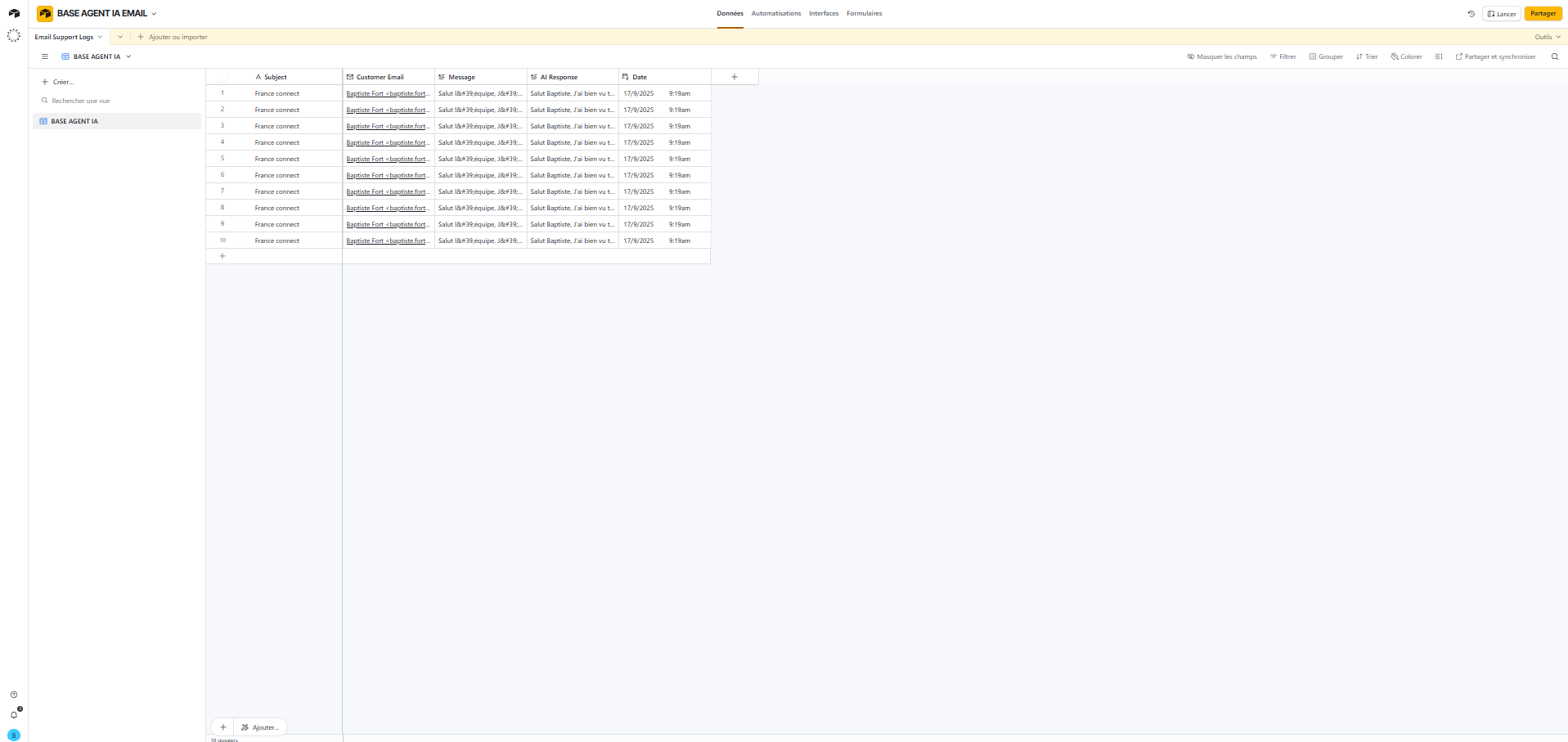\n"
},
"typeVersion": 1
}
],
"active": false,
"settings": {},
"versionId": "62a88b6b-abfb-4cd9-b916-6ae73fd43efe",
"connections": {
"AI Agent": {
"main": [
[
{
"node": "Sauvegarde dans Airtable",
"type": "main",
"index": 0
}
]
]
},
"Email Re\u00e7u": {
"main": [
[
{
"node": "AI Agent",
"type": "main",
"index": 0
}
]
]
},
"Sauvegarde dans Airtable": {
"main": [
[
{
"node": "R\u00e9pondre au Client",
"type": "main",
"index": 0
}
]
]
},
"M\u00e9moire des Conversations": {
"ai_memory": [
[
{
"node": "AI Agent",
"type": "ai_memory",
"index": 0
}
]
]
},
"R\u00e9ponse envoy\u00e9e au client GPT4.1 MINI": {
"ai_languageModel": [
[
{
"node": "AI Agent",
"type": "ai_languageModel",
"index": 0
}
]
]
}
}
}
Credentials you'll need
Each integration node will prompt for credentials when you import. We strip credential IDs before publishing — you'll add your own.
airtableTokenApigmailOAuth2openAiApi
For the full experience including quality scoring and batch install features for each workflow upgrade to Pro
About this workflow
This guide walks you step by step through setting up an automated agent that: Receives emails sent by your customers. Analyzes the content of the email. Generates an appropriate response using an AI model (OpenAI GPT). Stores all information (received email, AI response, date,…
Source: https://n8n.io/workflows/8676/ — original creator credit. Request a take-down →
Related workflows
Workflows that share integrations, category, or trigger type with this one. All free to copy and import.
This workflow automatically transforms your messy inbox into a neatly organized space while ensuring you never miss a critical message. It connects to your Gmail account and triggers for every new ema
This workflow is the core of a three-part email automation system. It monitors your Gmail inbox in real time, classifies every inbound customer email with AI, retrieves contextually relevant data from
This n8n template demonstrates how to automatically process invoice attachments from email using OCR and AI. When an invoice is received in Gmail, the workflow extracts structured invoice data and sto
Managing customer support across multiple platforms like email and chat can be a huge time sink. Answering the same questions about order status repeatedly takes your focus away from growing your busi
The workflow detects incoming job-application emails, extracts resumes, and parses them for AI analysis. It evaluates each candidate against three open roles and assigns a fit score with structured re